How to Make Transparent Fake Text Message & Chat Bubble Overlays (No Green Screen)
Need a transparent fake text message overlay for Minecraft parkour, Subway Surfers gameplay, streams, or vlogs? ChatStoryStudio is the green screen text message alternative with zero chroma-key color spill on green bubbles or drop shadows. Export a fake text overlay for CapCut, Premiere Pro & DaVinci Resolve (True Alpha WebM) across 23 UI presets (iMessage-style, WhatsApp-style, Discord-style, Frosted Glass-style) and 120+ expressive HD TTS voices across 4 languages (30+ English voices)—or upload up to 5 MP4 gameplay/vlog clips directly to render a composite MP4 in your browser.
Left: Composite vlog demo protecting lower-third captions / Right: True Alpha WebM checkerboard & gameplay overlay (click to enlarge)
Why Green-Screen Chroma Key & Manual PNG Keyframing Ruin Transparent Chat Overlays
Looking for a clean green screen text message alternative or a fake text overlay for CapCut, Premiere Pro & DaVinci Resolve? Traditional overlay methods hit three roadblocks: chroma-key color spill on green bubbles and drop shadows, 60-minute keyframe fatigue, and lower-third subtitle collisions.
Green screens eat green WhatsApp-style bubbles & ruin drop shadows
Keying out a #00FF00 background causes chroma-key color spill: punching holes through green WhatsApp-style bubbles, green avatars, and emojis—or eating iMessage-style blue bubbles on blue screens—while leaving jagged halos on soft drop shadows.
Stacking individual PNG bubbles and hand-keyframing Y-scroll takes 60+ minutes per Short
Every time a new reply arrives, you have to shift all previous PNG bubble tracks upward on the timeline. Fixing a single typo mid-conversation breaks every subsequent keyframe and sound effect.
Top headers and bottom input bars block faces, and bubbles collide with lower-third captions
Standard phone screen recordings include bulky status bars and keyboards, and messages scroll all the way to the bottom edge—covering up your main video’s subtitles, facecam, or game HUD.
Green Screen (Chroma Key) Failure vs. True 8-Bit Alpha WebM
20+ PNG Tracks & Manual Scroll Keyframes vs. 1 Alpha WebM Track
2 Ways to Create a Transparent Fake Text Message Overlay (Alpha WebM vs. Video BG)
Export a fake text overlay for CapCut, Premiere Pro & DaVinci Resolve via Alpha WebM, or composite MP4 gameplay/vlog footage directly inside your browser (Pro plan at $19/mo and above)—plus free testing for frameless layouts, video background previews, and stop lines.
| Workflow Feature | Route A: Transparent Alpha WebM Export | Route B: Direct MP4 Video Background |
|---|---|---|
| Best For | Premiere Pro, DaVinci Resolve, CapCut Desktop, After Effects & OBS users | Creators on PC, Mac, iPhone, or Android who want a finished MP4 in 1 step |
| Output Format | WebM (VP8/VP9 + 8-Bit Alpha Channel) up to 1620×2880 (Ultra HD) | MP4 (H.264) composite video up to 1620×2880 (Ultra HD) |
| How It Works | Set Format: WebM & Transparent Background: Enabled, then drop onto Track V2 | Upload up to 5 MP4 clips into Video Background + set Overlay opacity (0–100%) |
| Free Trial Scope ($0 / No Login) | Test Frameless Mode (Header Hidden / Footer Hidden), drag the Bottom Display Line (10%–95%), upload MP4 video backgrounds for live preview, and export transparent PNG split screenshots for free with zero login. | |
Enable 'Transparent Background (WebM)' & Drop 1 File onto Track V2
Click Export Video in the top-right corner of the editor to open the Export Video modal. Switch Format from MP4 to WebM, and set Transparent Background to Enabled. You can choose up to Ultra HD (1620 x 2880) resolution and Maximum (15 Mbps) quality at 30 FPS (Fixed).
- Format: WebM + Transparent Background: Enabled renders true 8-bit alpha right in your browser
- Select Ultra HD (1620 x 2880) or Full HD (1080 x 1920) so text stays razor-sharp even if you scale or punch-in inside Premiere Pro / CapCut
- Includes synced stereo audio (120+ HD TTS voices across 4 languages + pop/notification/cash SFX) in the same file
0% Background Opacity + Preserved Soft Drop Shadows + Clear Bottom 24% Zone
As shown in the frameless preview on the right, every pixel outside the chat bubbles, avatars, read receipts, and interactive story widgets has 0% opacity. Because the Bottom Display Line is set to 76%, the bottom 24% of the frame remains 100% unobstructed for your lower-third subtitles, facecam, or game health bar.
Upload Up to 5 MP4 Gameplay or Vlog Clips into 'Video Background' & Export MP4
Don’t want to open Premiere Pro or CapCut Desktop just to combine a background clip with a chat story? Click Background in the Project Settings preview to open Background Design Settings and switch Background Type to Video Background. Under Background Video List, click Add Video to upload up to 5 MP4 clips (such as Minecraft parkour, Subway Surfers, GTA driving, or cafe B-roll) and set Overlay to #000000 at 35% opacity so bright footage never washes out your chat text.
- Chain up to 5 MP4 video clips in Background Video List—automatically loops or transitions across your timeline duration
- Built-in Overlay Color & Opacity slider (0%–100%) dims bright background footage for instant text contrast
- Works on Windows, Mac, iPhone, and Android—and live video background preview in the editor is 100% free with no login
How to Make a Transparent Chat Bubble Overlay in 3 Steps
From script import to frameless stop-line calibration and alpha export, here is the exact 3-step studio workflow used by short-form gaming and vlog creators.
Paste a 'Speaker: Message' Script or Type Directly on the Visual Timeline
Click Create from Script in the left sidebar to open Create New Project from Script. Paste your dialogue in Name: Message format (supporting up to 15 speakers) and check Auto-add stage directions and BGM matching the script (Recommended). Following short-form retention best practices, keep each bubble to 1 short sentence (1 action per bubble) so the upward scroll creates a brisk visual rhythm over your background video.
Maya: Made it to Haru Cafe!
Maya: Ordered pancakes without you 🥞
Leo: WAIT I just got off the train!! 💦
Leo: 3 mins away I swear!!
Maya: "3 mins" means you're still in bed lol
Leo: HOW DID YOU KNOW?!?! 😱
Maya: Apology accepted! Run! ☕️
Set Header & Footer Design to 'Hidden' and Drag the Purple 'Bottom Display Line'
To prevent top navigation bars and bottom text-input bars from covering your gameplay or vlog footage, click the header and footer in the Project Settings preview (or open Header Design Settings / Footer Design Settings) and set both designs to Hidden. Next, drag the purple Bottom Display Line handle on the right edge of the preview canvas (adjustable from 10% to 95%, e.g., 76%–80%) so new bubbles pop in above your lower-third subtitles, facecam, or game HUD.
- Header Hidden + Footer Hidden isolates just the floating chat bubbles, avatars, and widgets
- Bottom Display Line (contentAnchorRatio: 10%–95%) stops bubbles from colliding with lower-third captions
- Both settings can be tested 100% free in your browser without creating an account
Add Story Action Cards, Vine Boom Shake, and 1-Click Batch Voice Synthesis
Make your overlay visually unforgettable by inserting interactive chat widgets—such as Gift & Action cards (with Hide Speech Bubble enabled and the memo “Pancake treat, please forgive me” spoken via TTS), Missed Call logs, 2–6 option Polls, and Screen Shake / Confetti effects. When you click Batch TTS, ChatStoryStudio synthesizes all lines across 120+ expressive HD TTS voices across 4 languages (30+ English voices) and automatically trims leading and trailing silence (-45dBFS threshold).
- Attach frameless photos, Gift & Action cards, Missed Calls, and Polls directly inside the transparent overlay
- Per-bubble entrance animations (Pop, Bounce, Slide, Elastic) and full-screen VFX (Shake, Confetti, Rain, Heartbeat)
- Automatic silence trimming & millisecond bubble sync eliminate manual audio cutting in Premiere Pro or CapCut
Switch to '1:1 Square' for Compact Side Overlays on 16:9 Horizontal YouTube & Twitch Videos
In addition to 9:16 (Vertical) for TikTok, Shorts, and Reels (up to 1620×2880 Ultra HD), you can switch your project to 1:1 (Square) (1080×1080 or 1620×1620 Ultra HD) in 1 click. A square alpha WebM canvas is ideal for placing a compact, scrolling chat box in the left or right margin of a 16:9 (1920×1080 / 4K) horizontal YouTube gaming video, reaction stream, or vlog without excess vertical bounding-box space.
Drop at 100% scale over vertical Minecraft parkour, Subway Surfers, or 9:16 vlogs with the Bottom Display Line protecting lower-third captions.
Position a compact square chat window beside your facecam or gameplay action in 16:9 widescreen videos with zero cropping required.
Need to tweak a line or pause after testing in Premiere Pro? Edit the message in your browser, re-export the WebM, and replace the file in 60 seconds.
Generate a Starter Chat Overlay from a 1-Line Prompt
Enter a 1-line scenario below (or click one of our gameplay/vlog templates) to launch the studio with a pre-built multi-speaker script, automatic stage directions, and TTS voice synthesis.
Beyond Messaging Bubbles: Discord-Style & Frosted Glass Gaming Overlays
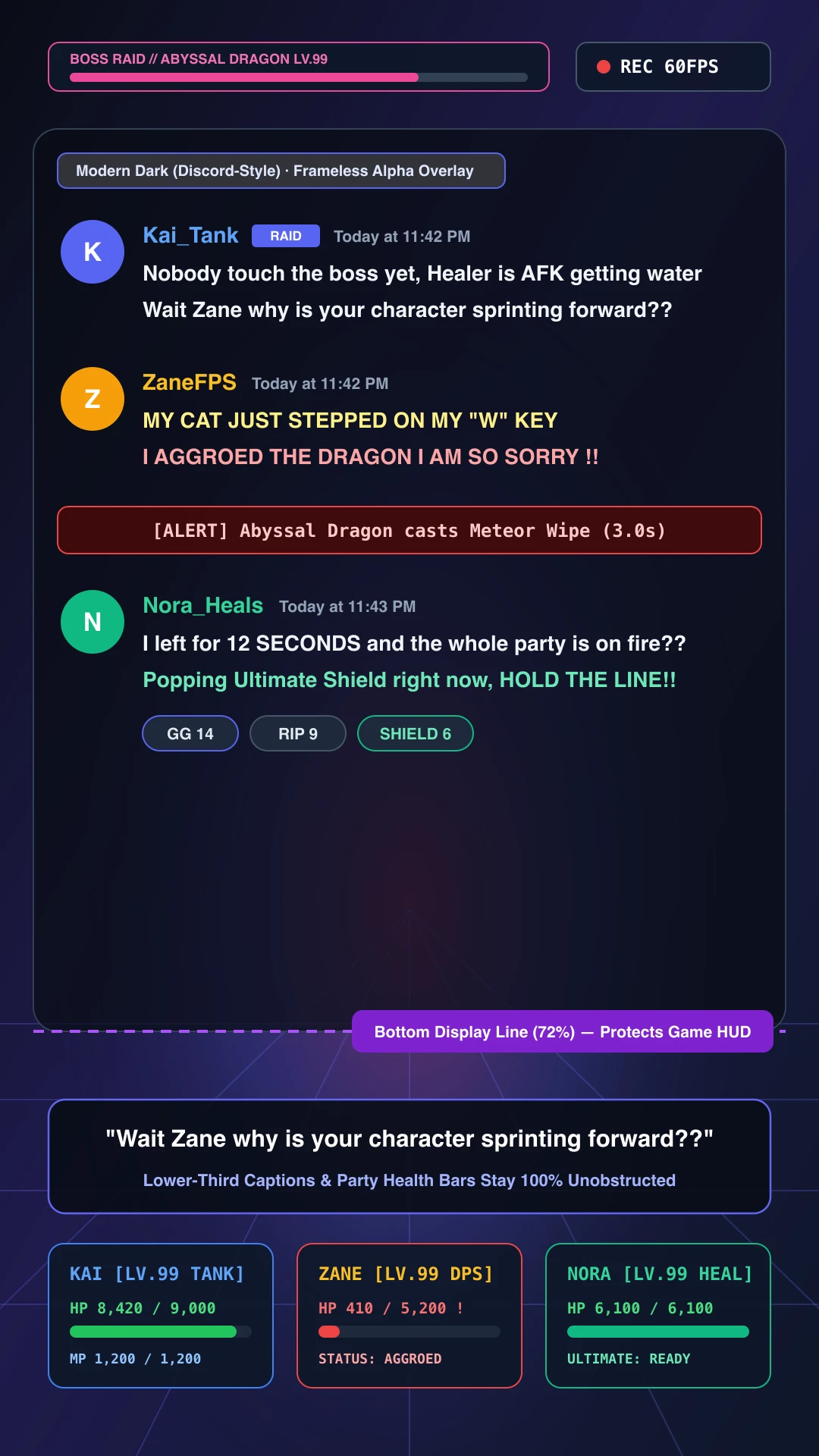
Transparent Alpha WebM and MP4 Video Backgrounds work across all 23 built-in UI presets (20+ UI styles). Switch from iMessage-style bubbles to Modern Dark (Discord-Style) for co-op raid callouts, or Romance Glass (Frosted Glass-Style) for aesthetic vlogs in 1 click.
Authentic Left-Aligned Co-op Callouts with Role Colors & Consecutive Grouping
When editing gaming highlights (Valorant, Minecraft, Elden Ring, GTA RP, or D&D sessions), two-sided speech bubbles can take up too much horizontal space. Switching to Modern Dark (Discord-Style) renders an authentic left-aligned flat list where consecutive lines from the same teammate automatically group without repeating avatars.
- Per-Speaker Role Colors: Assign distinct colors to Tank (
#60a5fa), DPS (#fbbf24), and Healer (#34d399) so viewers identify speakers in 0.1 seconds. - Protected Game HUD: Set the Bottom Display Line to 72% so party health bars, minimaps, and weapon HUDs at the bottom of your 9:16 crop stay 100% visible.
- System Alert Bars & Reactions: Add boss-cast warnings (
[ALERT] Abyssal Dragon casts Meteor Wipe) and reaction badges under clutch plays.
Switch Across 23 Built-In UI Presets in 1 Click (All Support Alpha WebM & Frameless Mode)
Every preset in ChatStoryStudio supports Frameless Mode (Header/Footer Hidden), the Bottom Display Line, Transparent Alpha WebM export, and MP4 Video Backgrounds. Switch your entire conversation between Soft Blue (iMessage-Style), Tea Bubble (WhatsApp-Style), Romance Glass (Frosted Glass-Style), and Modern Dark (Discord-Style) in one click without retyping a single message.
iMessage Soft Blue
A refreshing blue style with a clean, translucent feel.
WhatsApp Teal
Sophisticated teal green inspired by global messaging apps.
Romance Glass
Elegant frosted glass effect with soft gradients.
Discord Dark
Dark community chat UI inspired by Discord.
Customize Every UI Component & Save Your Own "My Themes"
Start from any official preset and fine-tune colors, fonts, headers, and bubble shapes to match your brand aesthetic.
Switch across 20+ header/footer designs, upload custom header graphics, or set to "Hidden" for frameless overlays
Choose solid colors, gradients, custom images, MP4 video backgrounds, or diagonally scrolling icon patterns
Customize left/right bubble colors, gradients, corner radii, bubble tails (ON/OFF), borders, and drop shadows
Switch fonts globally across modern sans-serif, serif, rounded, handwritten, and 8-bit pixel typefaces
Customize read labels ("Read", "Seen", double checkmarks), group read counts, and exact delay seconds before appearing
Save your customized color palette, background, and bubble styling as a reusable preset to apply in one click
Fake Text Overlay Compatibility for CapCut, Premiere Pro & DaVinci + 4-Method Matrix
Compare this green screen text message alternative (Alpha WebM & built-in MP4 Video Background) against green-screen chroma keying, manual PNG keyframing, and screen-recording cropping—plus device and NLE compatibility.
Premiere Pro, CapCut Desktop, DaVinci Resolve, After Effects & OBS
Export your .webm file using Google Chrome, Microsoft Edge, or Brave (Windows, macOS, or Android) via WebCodecs hardware acceleration. Drag the exported file straight onto Track V2 in your NLE—no Chroma Key or Ultra Key effect needed.
Direct MP4 Video Background or Custom Solid-Color Chroma Key
Editing on an iPhone or don’t want to open a desktop NLE? Upload up to 5 MP4 gameplay or vlog clips directly into Video Background and export a finished H.264 MP4 right in your browser.
#FF00FF) for green/blue bubbles and export an MP4.ChatStoryStudio (Alpha WebM / Video BG) vs. Traditional Overlay Methods
A head-to-head comparison of edge quality, keyframing effort, lower-third caption protection, audio synchronization, and revision speed across all 4 production methods.
| Comparison Criteria | ChatStoryStudio (Alpha WebM / MP4 Video BG) | Green Screen + Chroma Key | Manual PNG Bubbles in NLE | Screen Recording + Crop |
|---|---|---|---|---|
| Green/Blue Bubble Integrity & Drop Shadows | ◎ Native 8-bit Alpha Channel (VP8/VP9 + Alpha)—zero chroma-key spill on green bubbles or soft drop shadows | △ Green key eats green WhatsApp-style bubbles; blue key eats iMessage-style blue bubbles; leaves jagged neon halos on shadows | ○ Clean transparency, but requires exporting and importing 20+ individual PNG files | △ Opaque rectangular background blocks the underlying gameplay or vlog video |
| Upward Scroll & Keyframe Effort | ◎ 100% Automatic—all upward scrolling, typing dots (...), and read receipts are baked into 1 file | ○ Automatic scroll, but requires manual spill suppression and choke/tolerance tuning | △ 45–60 mins of manual Y-position keyframing across 20+ stacked video tracks | △ Manual finger scrolling looks jittery and inconsistent |
| Frameless Mode & Lower-Third Caption Protection | ◎ 1-click Header/Footer Hidden + draggable Bottom Display Line (10%–95%) protects lower-third captions | △ Requires manual NLE crop masks; bubbles still scroll down into lower-third subtitles | △ Requires manual track mattes at both the top and bottom of the frame | △ Cropping cuts off rounded corners and drop shadows unnaturally |
| Pop SFX & 120+ TTS Voice Synchronization | ◎ Millisecond-synced pop SFX + 120+ silence-trimmed (-45dBFS) HD voices across 4 languages (30+ English) embedded in 1 file | △ Often requires external TTS tools and manual audio alignment | △ Must manually align 20+ separate audio clips and pop SFX on the timeline | △ Must record or align voiceovers and SFX manually after screen capture |
| Direct Browser Compositing (No NLE Needed) | ◎ Upload up to 5 MP4 gameplay/vlog clips into Video Background + dark overlay and export MP4 directly | △ Impossible—always requires an external video editor | △ Impossible—always requires an external video editor | △ Impossible—always requires an external video editor |
| Cost of Fixing a Mid-Script Typo | ◎ Edit text in browser, re-export WebM, and swap 1 file in your NLE (~60 seconds) | ○ Re-render green-screen video and re-apply keyer | △ Re-keyframe every subsequent PNG layer and audio clip by hand | △ Re-record and re-crop the entire conversation from scratch |
Free Trial Scope vs. Lite, Pro & Business Plans
Test the entire frameless layout, Bottom Display Line, live Video Background preview, and transparent PNG image export for free with zero login. When you are ready to export Transparent Alpha-Channel WebM videos or render MP4 Video Backgrounds, upgrade to the Pro plan ($19/mo).
Test Frameless Layout & Standard MP4 / PNG Exports
- Free ($0, No Login): Test Header/Footer
Hidden, Bottom Display Line (10%–95%), live Video Background preview, transparent PNG split screenshots, and unlimited 1080p MP4 exports (with watermark). - Free Google Sign-In ($0): Unlocks 2,000 lifetime TTS credits (~2,000 English chars), 10 script imports, and 3 daily 1-line prompt generations.
- Lite ($9/mo): Removes watermark, unlocks 1.5x Ultra HD (1620×2880) MP4/PNG exports, and includes 2,000 monthly TTS credits, 50 monthly script imports, and 3 daily prompt generations.
Unlocks Alpha WebM Overlays & 5-Clip MP4 Video Backgrounds
- Transparent Alpha WebM Export: True 8-bit alpha channel up to 1620×2880 Ultra HD (15 Mbps) for Premiere Pro, CapCut Desktop & DaVinci Resolve.
- Direct MP4 Video Background: Upload up to 5 MP4 gameplay/vlog clips with adjustable dark overlay shading and export composite MP4s.
- 60,000 Monthly TTS Credits (~60,000 English chars), 100 monthly script imports, 10 daily prompt generations, no watermark, and personal social monetization rights.
For Agencies, Client Work & High-Volume Studios
- Includes all Pro features (Alpha WebM & MP4 Video Backgrounds) plus full corporate commercial & client delivery licensing.
- 400,000 Monthly TTS Credits (~400,000 English chars) for daily multi-channel production.
- 1,000 Monthly Script Imports (up to 30,000 chars per import) & 800 monthly 1-line prompt generations.
Frequently Asked Questions: Transparent Chat Overlays & Video Backgrounds
Create Your First Transparent Fake Text Message Overlay Free
Replace green-screen chroma key spill and manual PNG keyframes. Test Frameless Mode, built-in MP4 Video Backgrounds, 23 UI presets, and the Bottom Display Line in your browser—no login required.
Workflow & Cost Comparisons vs Other Tools
Related Use-Case & How-To Guides
* Product and company names such as "iMessage" (Apple Inc.), "WhatsApp" (WhatsApp LLC), "X" (X Corp.), "YouTube" (Google LLC), "Discord" (Discord Inc.), "Slack" (Slack Technologies, Inc.), "ChatGPT" (OpenAI OpCo, LLC), and "LINE" (LY Corporation) are trademarks or registered trademarks of their respective holders. ChatStoryStudio is an independent parody/mockup studio and is not affiliated with, sponsored by, or endorsed by any of these companies.